10 Best Video Editing Software for Windows 10 & 11 (2026 Guide)
Published on December 12, 2025
Whether you're editing YouTube videos, TikToks, Reels, client projects, or internal business content, video is no longer "nice to have", it's a key part of everyday communication. The good news is that there are more video editing tools for Windows than ever. The bad news? Choosing the wrong one can cost you a lot of time, money, and patience.
In this guide, you'll find a curated list of the best video editing software for Windows in 2025, from completely free tools to professional-grade editors. For each one, we'll walk you through key features, pros and cons, pricing, and who it's best suited for, so you can quickly decide which editor fits your skill level, budget, and the type of content you want to create.
Quick List – Best Video Editing Software for Windows (At a Glance)
- Flixier - Cloud-based editing with collaboration and AI-assisted tools, perfect for remote work or multi-device workflows.
- Adobe Premiere Pro - Industry-grade editing with a deep feature set and strong integration for complex projects.
- DaVinci Resolve - Powerful free editor including advanced editing, color grading, and audio tools.
- Filmora - Easy-to-learn, drag-and-drop editor with built-in templates and effects.
- CapCut Desktop - Lightweight, social-video-focused editor ideal for short-form content.
- Vegas Pro - Full-featured desktop editor with a one-time purchase option, popular among gamers and long-form video creators.
- HitFilm - Desktop editor combining editing and visual effects, useful if you want effects-heavy content.
- Shotcut - Open-source, no-cost editor with no watermarks or subscriptions.
- Clipchamp - Simple desktop editor, integrated with Windows and OneDrive, good for basic edits and quick social videos.
- VSDC Free Video Editor - Windows-only, non-linear editor offering decent features without watermark or subscription.
Software |
Free Plan |
Best For |
Skill Level |
Pricing Model |
| Flixier | ✅ (watermark + export limits) | Cloud workflows, AI-assisted editing, subtitles, voiceovers, remote teams, fast social & marketing content | Beginner – Intermediate - Advanced | Subscription |
| Adobe Premiere Pro | ❌ | Professional long-form, multi-cam, broadcast, YouTube series, agency work | Advanced - Professional | Subscription |
| DaVinci Resolve | ✅ (very powerful, no watermark) | Pro-level editing, color grading, audio post-production, cinematic content | Advanced - Professional | Free + One-time upgrade (Studio) |
| Filmora | ⚠️ (watermark) | Quick edits, templates, YouTube, educators, mid-range hardware | Beginner – Intermediate | Lifetime license / Subscription |
| CapCut Desktop | ✅ (no watermark) | Short-form vertical content, TikTok, Reels, Shorts | Beginner | Free |
| Vegas Pro | ❌ | Long-form desktop editing, timeline control, gamers, YouTubers | Intermediate – Advanced | One-time purchase / Subscription |
| HitFilm | ✅ (Express) / ❌ (Pro) | Editing + built-in VFX, compositing, effects-heavy content | Intermediate – Advanced | Free (Express) / One-time or Subscription (Pro) |
| Shotcut | ✅ (no watermark) | Free, open-source desktop editing, full file control | Intermediate | Free (Open Source) |
| Clipchamp | ✅ | Quick social edits, simple cuts, Windows & OneDrive users | Beginner | Free / Subscription |
| VSDC Free Video Editor | ✅ (no watermark) | Budget-friendly, Windows-only desktop editing with deeper control | Intermediate | Free |
Flixier
Quick Take
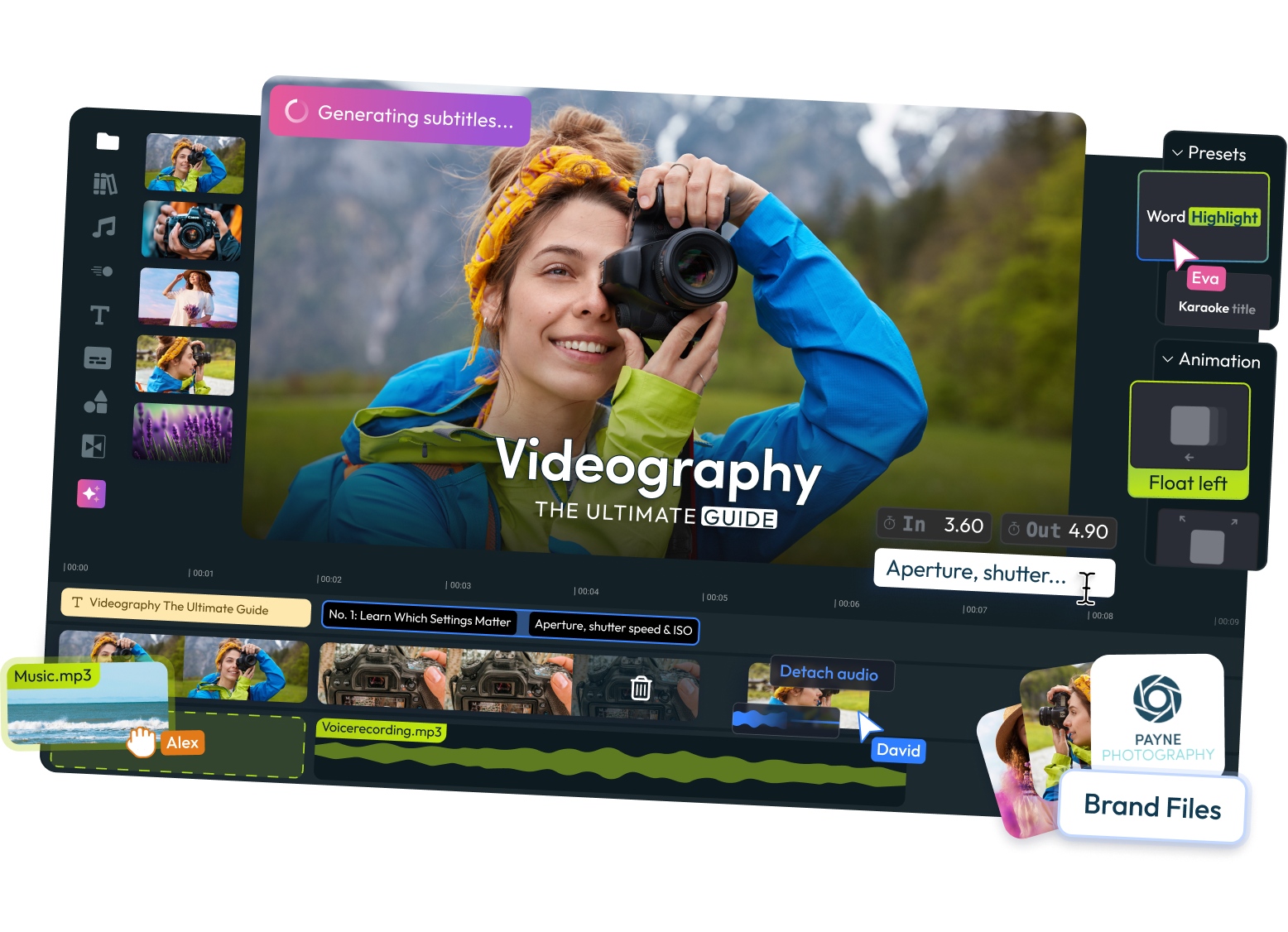
Flixier runs entirely in the browser, with rendering handled on remote servers instead of your PC. If you want to speed up editing, skip heavy local installs, and leverage AI workflows for subtitles, voiceovers, and more. It's a solid choice for creators or teams, especially when hardware or time is limited.
What You'll Notice First
You open a browser tab, upload clips (or import from cloud storage), and start editing, no installation required. Exports are often much faster than local tools because processing happens in the cloud. The interface guides you toward editing by transcript or by timeline, and collaboration tools (shared projects, real-time edits) are built into the workflow.
Pros
- Works smoothly on almost any Windows PC
- Cloud rendering reduces hardware strain and speeds up exports
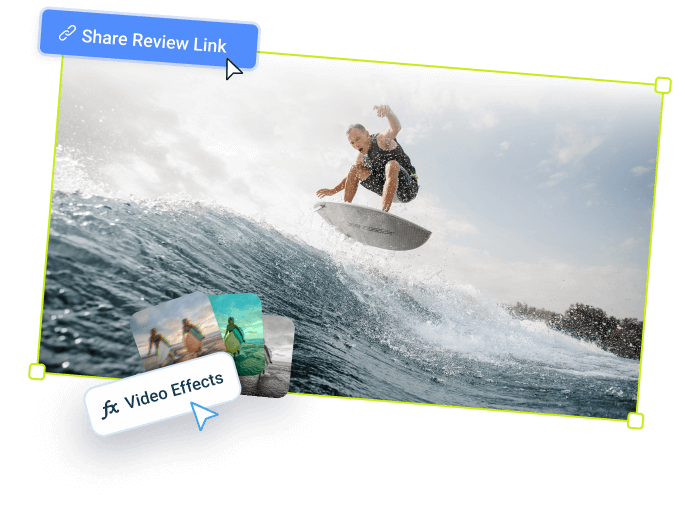
- Built-in collaboration for shared projects and remote teams
- AI tools for auto-subtitles, translations, voiceovers, and quick audio cleanup
- Fast setup with no installation required
Cons
- Requires a stable internet connection for smooth editing and rendering
- Free plan includes watermarks, limited export time/resolution
- Less suited for advanced color grading, complex VFX, or fine-tuned audio post-production compared to heavyweight desktop editors
Pricing (as of December 2025)
- Free Plan: 10 minutes of 720p exports per month with watermarks
- Pro Plan: ~$30/month (or ~$144/year when billed annually)
- Business Plan: ~$60/month for team features
System Requirements (Minimum):
- Windows 10 or later
- Modern web browser (Chrome, Edge, Firefox, Safari)
- 4 GB RAM
- Stable internet connection (10+ Mbps recommended for smooth editing and uploads)
System Requirements (Recommended):
- Windows 11
- 8 GB+ RAM
- High-speed internet connection (25+ Mbps for 4K projects)

Adobe Premiere Pro
Quick Take
Adobe Premiere Pro offers a deep, flexible desktop editing environment built for complex projects. It's well-suited for editors working on multi-camera shoots, long-form content, broadcast, or advanced YouTube production. With broad format support and tight integration into the Adobe ecosystem, it remains a standard in professional workflows.
What You'll Notice First
A dense interface with dedicated panels for editing, effects, color, audio, metadata, and graphics. Nearly every professional tool is available, but it takes time to master.
Pros
- Precise timeline and multi-camera editing
- Deep integration with Adobe's creative tools
- Supports almost every common format and codec
- Huge ecosystem of plugins, templates, and tutorials
Cons
- Subscription-only pricing
- Heavy on system resources
- Overkill for quick or simple edits
- Steep learning curve for beginners
Pricing (as of December 2025):
- Single App: $22.99/month
- Creative Cloud All Apps: $59.99/month (includes Photoshop, After Effects, etc.)
- Annual commitment required for best rates
System Requirements (Minimum):
- Windows 10 (64-bit) version 22H2 or later
- Intel 6th Gen or AMD Ryzen 1000 series processor
- 8 GB RAM
- 2 GB GPU VRAM
- 8 GB available hard-disk space for installation
- 1280x800 display resolution
System Requirements (Recommended):
- Windows 11
- Intel 7th Gen or newer / AMD Ryzen 3000 series or newer
- 16 GB RAM for HD, 32 GB for 4K/8K projects
- NVIDIA GeForce GTX 1660 or AMD Radeon RX 5500 XT (4 GB+ VRAM)
- Fast SSD for media storage
- 1920x1080 or greater display resolution

DaVinci Resolve
Quick Take
DaVinci Resolve combines editing, color grading, and audio tools into a single desktop application. The free version alone is powerful enough for many serious projects, making it a strong option for creators who want professional-level tools without a subscription.
What You'll Notice First
The interface is divided into task-based "pages" (cut, edit, color, audio, deliver), which keeps complex tools organized and structured.
Pros
- High-end color grading tools
- Integrated professional audio editing
- No watermarks or export limits on free version
- One-time upgrade option for advanced features
Cons
- Demanding on hardware for heavier projects
- Advanced toolset increases learning curve
- Some collaboration and VFX tools require paid Studio version
Pricing (as of December 2025):
- Free Version: Full editing, color grading, and audio tools with no watermarks
- DaVinci Resolve Studio: $295 one-time purchase (adds advanced VFX, noise reduction, collaboration features, and more)
System Requirements (Minimum):
- Windows 10 Creators Update (64-bit)
- 16 GB system memory
- Intel HD Graphics 5000 or equivalent
- 8 GB available disk space
System Requirements (Recommended):
- Windows 11
- 32 GB RAM (64 GB for 4K or complex timelines)
- NVIDIA GeForce RTX 2060 / AMD Radeon RX 5700 or better
- Fast NVMe SSD for media cache
- Dedicated GPU with 4 GB+ VRAM for GPU acceleration

Filmora
Quick Take
Filmora focuses on simplicity and speed through templates, built-in effects, and drag-and-drop editing. It's designed for users who want polished-looking videos without navigating professional-level complexity.
What You'll Notice First
A straightforward workflow with pre-built effects and transitions that let you finish projects quickly with minimal setup.
Pros
- Very easy to learn
- Large library of effects and templates
- Affordable pricing with lifetime license option
- Performs well on mid-range Windows laptops
Cons
- Free version includes watermark
- Limited fine control compared to pro editors
- Visual style can feel generic over time
- "Perpetual" license only covers current version, not all future updates
Pricing (as of December 2025):
- Annual Plan: ~$49.99/year
- Perpetual Plan: ~$79.99 (one-time for current version only)
System Requirements (Minimum):
- Windows 7/8/10/11 (64-bit)
- Intel i3 or AMD equivalent processor
- 8 GB RAM
- Intel HD Graphics 5000 or equivalent
- 10 GB free hard-disk space
System Requirements (Recommended):
- Windows 10/11 (64-bit)
- Intel i5 or i7 / AMD Ryzen 5 or 7
- 16 GB RAM
- NVIDIA GeForce GTX 1050 or AMD equivalent
- SSD storage for faster performance

CapCut for Desktop
Quick Take
CapCut Desktop is a lightweight editor designed specifically for short-form, vertical, and social-first content. It prioritizes speed and simplicity for quick production cycles.
What You'll Notice First
A clean interface optimized for trimming clips, adding text, stickers, and simple transitions with minimal setup.
Pros
- Fast turnaround for short videos
- Runs well on modest hardware
- Presets designed for social platforms
Cons
- Not built for long-form or complex edits
- Limited advanced color and audio tools
- You may outgrow it as your production needs expand
Pricing (as of December 2025):
- Completely free with essential tools
- Pro pricing starts $7.99-$9.99/month or $74.99-$89.99/year
System Requirements (Minimum):
- Windows 10 (64-bit) version 1809 or later
- Intel Core i3 or AMD equivalent
- 4 GB RAM
- Intel UHD Graphics or equivalent
- 4 GB available storage
System Requirements (Recommended):
- Windows 11
- Intel Core i5 8th Gen or newer / AMD Ryzen 5 3000 series or newer
- 8 GB RAM
- Dedicated GPU with 2 GB+ VRAM
- SSD for project storage

Other Options Worth Exploring: Vegas Pro, HitFilm, Shotcut, Clipchamp, VSDC
Vegas Pro
A full-featured desktop editor with strong timeline control and plugin support. Appeals to creators who prefer one-time purchase software and traditional editing workflows.
Pricing (as of December 2025):
- Vegas Pro 21: ~$399 one-time purchase
- Vegas Pro 21 Suite: ~$599 (includes additional plugins and effects)
- 365 subscription option also available at ~$19.99/month
System Requirements (Minimum):
- Windows 10 (64-bit) version 1909 or later
- Intel Core i5 / AMD Ryzen 5 or equivalent
- 8 GB RAM
- DirectX 12-compatible GPU
- 1.5 GB hard-disk space for program installation
System Requirements (Recommended):
- Windows 11
- Intel Core i7 / AMD Ryzen 7 or better
- 16 GB RAM (32 GB for 4K)
- NVIDIA GeForce RTX series or AMD Radeon RX 6000 series
- SSD for media files
HitFilm
Blends video editing with built-in visual effects and motion graphics tools, making it useful for creators who want to add compositing alongside standard edits.
Pricing:
- HitFilm Express: Free with limitations
- HitFilm Pro: ~$349 one-time purchase (or ~$12.99/month subscription)
System Requirements (Minimum):
- Windows 10 (64-bit)
- Intel Core i5 / AMD equivalent
- 8 GB RAM
- 2 GB GPU VRAM (OpenGL 3.2 or higher)
- 2 GB available disk space
System Requirements (Recommended):
- Windows 11
- Intel Core i7 / AMD Ryzen 7
- 16 GB+ RAM
- NVIDIA GeForce GTX 1060 / AMD Radeon RX 580 or better
- SSD storage
Shotcut
Free, open-source editor with no watermarks. A capable option for budget users who want desktop-based editing and full control over their files.
System Requirements (Minimum):
- Windows 10 or 11 (64-bit)
- Intel or AMD x86-64 processor
- 4 GB RAM
- OpenGL 2.0-compatible graphics
- 1 GB available disk space
System Requirements (Recommended):
- Windows 11
- Multi-core processor
- 8 GB+ RAM
- Dedicated GPU
- SSD for media
Clipchamp
A basic editor integrated into Windows and OneDrive. Best for quick trims, simple social edits, or light internal content.
Pricing (as of December 2025):
- Free plan: Basic features with some limitations
- Clipchamp Premium: ~$11.99/month (includes premium filters, effects, and no watermark on some features)
- Included with Microsoft 365 subscriptions
System Requirements (Minimum):
- Windows 10 version 19041.0 or higher
- 4 GB RAM
- Modern web browser or Clipchamp app
System Requirements (Recommended):
- Windows 11
- 8 GB RAM
- Hardware acceleration enabled in browser
VSDC Free Video Editor
A Windows-only editor that offers more control than basic apps without ongoing costs. A reasonable option for users who want a no-cost desktop solution with depth.
System Requirements (Minimum):
- Windows XP SP3 or later (32-bit or 64-bit)
- Intel/AMD processor 1.5 GHz
- 2 GB RAM
- 300 MB free disk space
System Requirements (Recommended):
- Windows 10/11 (64-bit)
- Intel Core i5 / AMD equivalent
- 8 GB RAM
- Dedicated graphics card
- SSD storage
How to Choose the Right Video Editing Software for Your Windows PC
Consider Your Skill Level and Goals
- Just starting out → Look for editors that get you results fast without complexity: Filmora, CapCut, Clipchamp, or Flixier.
- Intermediate creators → Want more control, multiple tracks, better editing features → Try DaVinci Resolve (free), HitFilm, Filmora with more advanced features, or Flixier if you want the same multi-track flexibility but with faster, browser-based editing and easier collaboration.
- Advanced/professional workflows → Need full control, multi-cam editing, professional color and audio tools → Go for Premiere Pro, DaVinci Resolve (Studio), or Vegas Pro.
Match Your Hardware
- Low-end laptops (4–8 GB RAM, integrated graphics): Use cloud editors (Flixier) or lightweight desktop editors (Clipchamp, VSDC, Shotcut), though expect limitations.
- Mid-range laptops (8–16 GB RAM, basic dedicated GPU): Filmora, CapCut, HitFilm, Clipchamp, Shotcut, and DaVinci Resolve (with proxy or lighter workflows), in addition to the browser-based editors like Flixier.
- Powerful machines (16 GB+ RAM, dedicated GPU, SSD): Any of the editors, from Premiere Pro to DaVinci Resolve Studio or Vegas Pro for smooth 4K editing.
Type of Content Matters
- Short-form vertical content (TikTok, Reels, Shorts): CapCut Desktop, Clipchamp, or Flixier, good for quick content with minimal setup.
- YouTube long-form videos, tutorials, vlogs: Premiere Pro, DaVinci Resolve, Flixier and Vegas Pro are better suited for longer timelines, multiple clips, and more control.
- Color-rich or cinematic content: DaVinci Resolve (especially for grading), Premiere Pro (with color tools), HitFilm (for effects-heavy work).
- Business videos, social or marketing clips, translations, remote collaboration: Flixier for quick turnarounds and team workflows; Filmora or Clipchamp for simpler edits when speed matters.
- Podcasts or interviews: DaVinci Resolve (audio tools), Premiere Pro (multi-track).
Budget & Pricing Models
- Free and no-watermark: DaVinci Resolve (free), Shotcut, CapCut Desktop, Clipchamp (basic tier), Flixier (free plan), VSDC.
- One-time purchase: Filmora Perpetual (~$79.99 for current version), Vegas Pro (~$399), HitFilm Pro (~$349), DaVinci Resolve Studio ($295).
- Subscription-based: Adobe Premiere Pro (~$22.99/month), Flixier (~$25/month or $120/year), Clipchamp Premium (~$11.99/month), HitFilm Pro subscription (~$12.99/month).
Tips for Editing Faster on Windows (No Matter the Editor)
- Use an SSD instead of HDD. Store footage/projects on SSD for faster load times; use HDD for backups or long-term storage.
- Close background apps. Free up CPU/RAM by shutting down non-essential programs before editing.
- Enable performance mode in Windows. It helps if you're editing on a laptop or power-constrained device.
- Use proxy files for high-resolution footage (4K/8K) if your machine struggles. Many editors support proxy workflows.
- Learn keyboard shortcuts for basic editing tasks to speed up your workflow.
- Organize your media before importing: name files clearly, group by footage/audio/graphics, delete bad takes.
- Batch your editing work: for example, cut all clips first, then add music, then color correct. This saves time and keeps you in a focused flow.
- Use export presets and templates. It saves time when you often export with the same settings (e.g. for social media or YouTube).
- Add a second monitor, if possible. Having a timeline on one screen and sources/previews on another greatly improves workflow and efficiency.
Which Windows Video Editor Should You Choose in 2025?
There's no universal "best". The right editor depends on what you create, how complex your projects are, and the computer you use.
- If you want a powerful free editor with pro-level tools → Go for DaVinci Resolve.
- If you're new and want to produce content fast and simply → Try Filmora, CapCut, or Flixier.
- If you aim for professional-level editing and maximum control → Consider Adobe Premiere Pro, DaVinci Resolve Studio, or Vegas Pro.
- If you work across devices, need team collaboration, or value fast exports more than deep controls → Flixier is a solid pick.
- If you want zero cost and no subscription hassles → Shotcut, VSDC, or CapCut Desktop are worth exploring.
Ultimately, match the software to your workflow, your hardware, and what you want to achieve.
Content writer with over 8 years of experience in digital marketing. When she's not deep in the writing zone, you'll find her on coffee dates with friends, writing poems, or taking photographs on film. Because all the best stories need a little caffeine, creativity, and color.